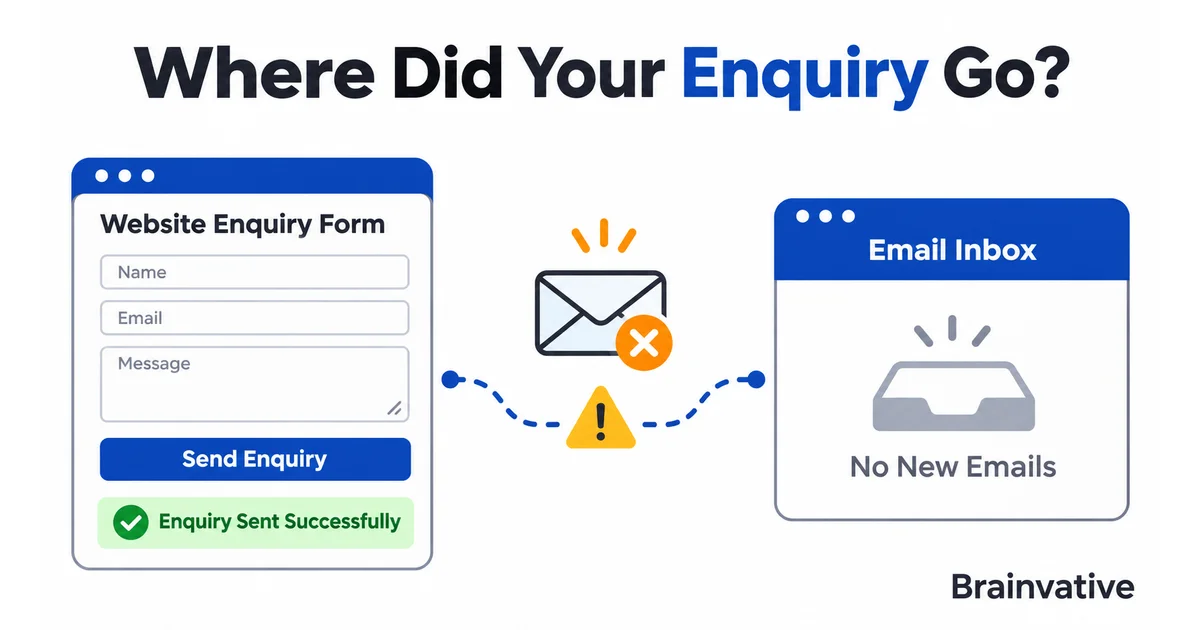
A visitor completes your enquiry form, sees a thank-you message and waits for a reply. Your team checks the inbox and finds nothing. The website appears to work, but the conversation never reaches the person who should respond.
If your website contact form is not sending emails, the problem may be the form itself, its email configuration or delivery after the message leaves your server. Replacing the form without identifying the failed step can leave the same problem behind.
This guide explains how to follow one test enquiry from submission to inbox, what evidence to collect and how to reduce the risk of losing future enquiries.
The short answer: check the delivery chain, not just the success message
There are four separate stages: the browser submits the form, the application accepts it, a mail service accepts the notification, and the receiving system delivers it. A green confirmation on the page does not prove that all four happened.
- Submit a uniquely labelled test and check whether the website saved it.
- Check the application's validation, error and mail logs for that submission.
- Confirm the sender, recipient and authenticated mail connection.
- Inspect delivery events, bounce messages, spam folders and mailbox rules.
- Repeat the test after the fix and keep a protected record of enquiries independently of email.
Why a form can say "sent" when no email arrives
A success message often confirms only that the application handled the request. Some forms queue email for later processing; others display confirmation without checking the mail result correctly. A broken background worker can therefore leave a successful submission waiting indefinitely.
The official PHP mail documentation explicitly distinguishes acceptance for delivery from actual arrival. A successful return value is not evidence that the intended recipient received the message. The same distinction matters when reviewing a form plugin's "email sent" log.
Step 1: trace one identifiable test enquiry
Use a test name such as "Website enquiry test 09 November" and record the page URL, submission time and intended recipient. Use your own contact details rather than a customer's. Avoid sending repeated tests while changing several settings at once.
In your browser's developer tools, open the Network panel before submitting. Locate the form request and check its response. An HTTP 200 response alone does not prove success: the response body can still contain a validation error or an application-level failure.
- No request: investigate client-side validation, JavaScript errors or an unresponsive submit button.
- Rejected request: inspect validation, CSRF protection, expired CAPTCHA tokens, rate limits and server errors.
- Accepted submission: move to the application record and mail logs rather than repeatedly rebuilding the visible form.
Test the actual forms visitors use, including popups and mobile layouts. A functioning contact page does not prove that a separate callback form works. These checks belong in the handover and maintenance of a business website, not only in its initial visual review.
Step 2: establish whether the enquiry was stored
Check the form plugin's entries screen, the application's database or the connected CRM. Not every form stores submissions automatically. If no storage exists, use appropriately protected application logs to investigate without exposing the visitor's full message or contact details.
A saved submission with no email usually points further along the delivery chain. No saved submission may indicate a form-handling problem, but first confirm that saving entries was actually configured. For queued notifications, check the job status and failure log as well as whether the worker is running.
Give each enquiry a submission ID. Linking that ID to a mail-provider message ID makes later investigations much easier. Keep credentials, message bodies and personal data out of public debug output.
Step 3: check the recipient and sender separately
Start with the simplest configuration mistakes: an old employee's address, a misspelled mailbox, a disabled account or a routing rule that sends the enquiry somewhere unexpected. Verify both the primary recipient and any configured copies.
For the sender, use an address on a domain that your mail provider authorizes you to send from. Do not put the visitor's Gmail or other external address in the From field as though your server represents that domain. Put the visitor's validated email in Reply-To when the form collects one.
Illustrative configuration: From: Website Enquiries <forms@example.com>; To: sales@example.com; Reply-To: the visitor's validated address. These are examples, not credentials or live Brainvative settings.
Validate addresses server-side and use a maintained mail library or provider integration instead of constructing raw email headers from untrusted form input.
Step 4: verify the SMTP or email API connection
Check the provider's current connection instructions: hostname, port, encryption mode, authentication method and permitted sender. A password changed in the email account but not in the website can stop notifications immediately. A sender-verification failure or exhausted sending allowance can have the same visible effect.
- Send a test through the same mail integration used by the form.
- Read the exact error rather than assuming every failure is a password problem.
- Check whether hosting restrictions prevent outbound connections to the chosen service.
- Confirm queued messages are processed and that failed jobs are visible to the team.
- Keep API keys and passwords in private configuration, never in browser JavaScript or a public diagnostic page.
For WordPress, the wp_mail documentation also warns that a successful result does not mean the recipient received the message. An SMTP integration can improve authentication and diagnostic visibility, but it cannot guarantee inbox placement.
Step 5: review authentication without guessing DNS records
SPF identifies authorized sending infrastructure. DKIM provides a cryptographic signature. DMARC evaluates alignment with the visible From domain using SPF or DKIM and provides a policy for failures. These mechanisms help receiving systems assess messages; they are not an inbox-delivery guarantee.
Follow the sending provider's exact DNS instructions and account for every legitimate sender on the domain. Do not paste a generic SPF record over an existing record or tighten a DMARC policy without understanding the effect on current email services.
Google's email sender guidelines distinguish requirements for all senders to personal Gmail accounts from additional requirements for bulk senders. A small contact form is not automatically a bulk mailing system. Check the guidance applicable to your sending pattern rather than treating every rule as universal.
Step 6: follow the message beyond the website
Look for the provider's accepted, deferred, rejected or delivered event and the associated reason. "Delivered" commonly means the receiving mail server accepted the message; it does not establish that it appeared in the main inbox or that someone read it.
Search spam, quarantine, archived messages and mailbox rules. Check forwarding, storage limits and security filters. A test to another mailbox you control can help distinguish a recipient-specific issue from a broader sending problem, but it does not replace testing the real destination.
If a rejection or non-delivery report exists, use its actual diagnostic information. Our guide to diagnosing email bounce messages covers that separate part of the investigation.
Keep an enquiry record that does not depend on the inbox
Email should alert your team to an enquiry, not be its only surviving record. Where appropriate, save validated submissions securely before sending notifications. Restrict staff access, set a retention period and include the processing in your privacy information.
A practical workflow is: save the enquiry, assign a reference, send the notification, record its outcome and alert an administrator if delivery fails. Retries should be bounded and designed to avoid duplicate messages. Do not store more personal information than your team needs.
Measure form submissions separately from email notifications and sales outcomes. A Google Analytics event can help monitor form usage, but it is not a substitute for an enquiry record or proof of inbox delivery. Do not send names, email addresses, phone numbers or message text as Analytics event parameters.
What to test before calling the issue fixed
- The correct form submits on desktop and mobile without a browser error.
- A uniquely identified enquiry is stored where expected.
- The notification is addressed to the intended team and uses an authorized sender.
- The mail provider's event and destination mailbox agree with the test outcome.
- Reply-To works when a visitor email is supplied.
- Failed or delayed notifications are detectable instead of silently discarded.
- Other forms still work after a shared mail configuration change.
Keep a short test log containing the form URL, time, submission reference and result. Recheck after changing hosting, DNS, mail providers, form plugins or authentication credentials.
Fix the broken step, then protect the next enquiry
A contact form is a business workflow, not just a design element. Finding where a specific submission stopped is more useful than installing another plugin without evidence. Once delivery is restored, protected enquiry storage and visible failure reporting make the system easier to maintain.
Need help tracing missing website enquiries? Contact Brainvative with the affected form URL, the time of a test and the error message if available. Never share account passwords or customer records through a public form.